Why Your Computer Benefits from a Professional Clean

Why Your Computer Benefits from a Professional Clean

Sales, Products & Recommendations

by admin | Aug 31, 2026 | 0 comments

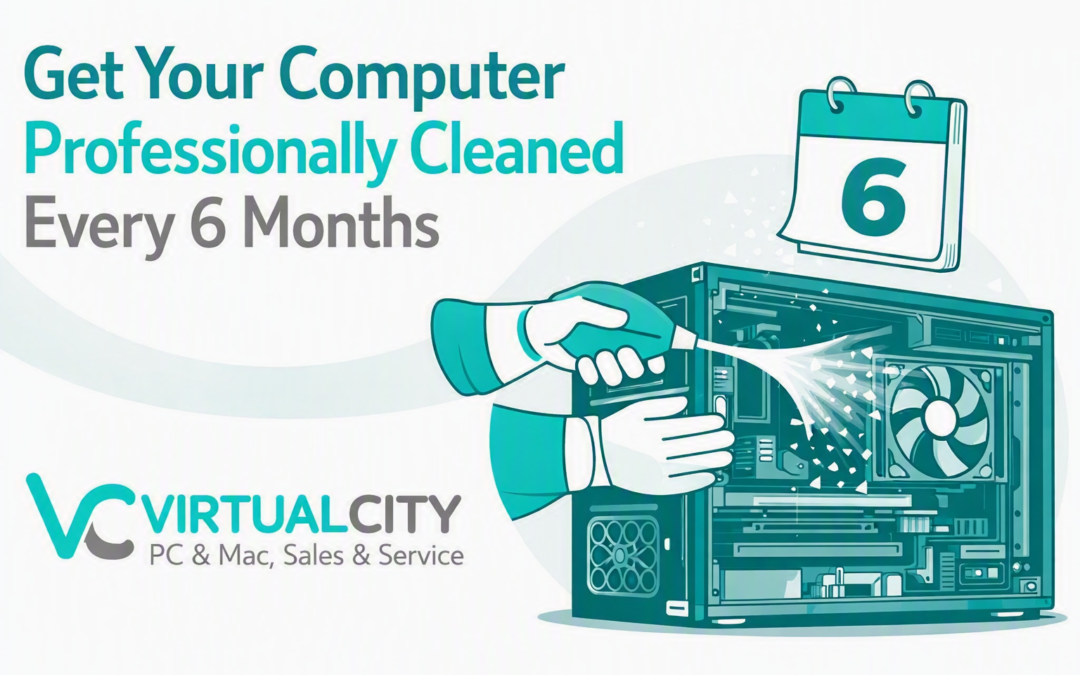
Your computer works hard every day, and just like your car, it needs regular maintenance to stay reliable. Over time, dust, dirt and pet hair build up inside the system, restricting airflow and forcing components to run hotter than they should. Excess heat leads to slow performance, noisy fans and, in some cases, premature hardware failure.

A professional maintenance clean every six months keeps your computer running cooler, quieter and more efficiently — and this is something VirtualCity can take care of for you.

Our technicians don't just clean your system; we also check for early signs of wear, loose connections, fan issues and other potential problems before they turn into expensive repairs. It's simple preventative care that protects your investment.

Regular maintenance can help

  • Prevent overheating and improve airflow
  • Reduce dust build‑up inside your computer
  • Keep fans running quietly and efficiently
  • Identify potential hardware issues early
  • Extend the lifespan of your computer

A small amount of preventative maintenance now can save you from major headaches later.

If it's been more than six months since your computer had a proper clean, it's probably overdue. Book a maintenance clean with VirtualCity and keep your computer performing at its best.

Starting High School in 2027: A Practical Tech & Laptop Guide for NSW Parents

Starting High School in 2027: A Practical Tech & Laptop Guide for NSW Parents

Sales, Products & Recommendations

by admin | Aug 17, 2026 | 0 comments

For families across NSW - including here in Nowra - 2027 brings a big milestone: your child is entering high school. Along with new subjects and routines comes one major decision many parents stress over:

"What laptop should we buy for Year 7?"

To make things easier, this guide blends:

  • NSW Department of Education BYOD requirements
  • Practical buying advice
  • Realistic spend ranges
  • The growing trend of backpack‑kicking (yes, it’s real)
  • Repair costs and prevention tips

This is the 2027 parent guide every family should read before buying a device.

NSW BYOD Requirements for High School Students (2027)

While individual schools may set their own BYOD policies, the NSW Department of Education outlines baseline requirements that all devices must meet to work on the school network.

Mandatory Requirements

These apply to all NSW public high schools using the DoE network:

  • Wi‑Fi: Must support 5GHz 802.11ac
  • Operating System:
    • Windows 11 (Windows 10 phased out)
    • macOS (current version)
  • Battery Life: Minimum 6 hours
  • Screen Size: Minimum 10 inches
  • Keyboard: Required (no tablet‑only devices)
  • Storage: Minimum 128GB SSD
  • Camera & Microphone: Required for online learning
  • Protective Case: Strongly recommended

What Schools Explicitly Do Not Allow

Based on several High School's BYOD guidelines:

  • Chromebooks — not compatible with DoE systems
  • Android tablets — not supported
  • Windows S‑Mode devices — too restricted
  • Phones — never accepted as learning devices

What Schools Strongly Recommend

Based on several High School's BYOD guidelines:

  • Windows laptops (most compatible with school software)
  • MacBooks (excellent build quality, higher cost)
  • Touchscreens optional, not required
  • Stylus optional, not required

This means parents should avoid "cheap" devices that look good on paper but fail the DoE Wi‑Fi or OS requirements.

How Much Should Parents Spend in 2027?

Let’s be realistic: you don't need a $2,000 laptop for Year 7 - but you can buy one if you want longevity.

Budget Range ($600–$900)

Good for basic schoolwork

  • Web browsing
  • Google Classroom
  • Office apps
  • Research
    May struggle with multimedia subjects later.

Mid‑Range ($900–$1,400)

Best value for most families

  • Stronger hinges
  • Better battery life
  • Faster processors
  • Suitable for Years 7–12

Premium ($1,500–$2,500)

MacBooks & high‑end Windows laptops

  • Excellent durability
  • Lower repair rates
  • Ideal for design, photography, tech electives

The Backpack‑Kicking Trend: What Parents Need to Know

Across NSW - including Nowra, Ulladulla, Kiama and the Southern Highlands - schools are reporting a growing issue:

Kids are kicking their backpacks… with laptops inside.

It's become a social habit:

  • Kids drop bags on the ground
  • Kick them toward classrooms
  • Treat them like soccer balls
  • Forget there's a $1,000 device inside

Damage We're Seeing in 2026

At VirtualCity and other repair centres, the most common issues include:

  • Cracked screens
  • Bent hinges
  • Internal motherboard fractures
  • SSD dislodgement
  • Warped frames
  • Liquid damage from bottles inside the bag

Average Repair Costs (2026)

  • Screen replacement: $180–$450
  • Hinge repair: $120–$250
  • Motherboard replacement: $350–$900
  • Liquid damage recovery: $150–$600
  • Full replacement: Often cheaper than major repairs

One kick can destroy a laptop — even inside a padded sleeve.

How to Protect Your Child's Laptop

  1. Buy a Hard‑Shell Case
    Rigid cases prevent bending and absorb impact.
  2. Choose a Laptop With a Strong Chassis
    Metal > plastic
    Aluminium or magnesium alloy laptops survive school life far better.
  3. Teach "Backpack Awareness"
    Simple rules:

    • Don't kick your bag
    • Don't throw your bag
    • Don't sit on your bag
    • Keep water bottles separate
    • Don't leave your bag in the sun
  4. Consider Accidental Damage Insurance
    Some brands offer:

    • 1-3 years coverage
    • Low excess
    • Replacement guarantees

    This can save hundreds over the life of the device.

Buying Advice for 2027: What Parents Should Look For

Processor

  • Intel i5 / Ryzen 5 minimum
  • Avoid Celeron/Pentium — too slow for high school

RAM

  • 8GB minimum
  • 16GB recommended for longevity

Storage

  • M.2 NVMe SSD or traditional 2.5" SSD only
  • Avoid HDDs - fragile and slow

Build Quality

Look for:

  • Reinforced hinges
  • Metal chassis
  • Spill‑resistant keyboards
  • Rubberised edges (education models)

Brand Reliability (Based on Repair Data)

  • Most reliable: Apple, Lenovo, HP ProBook/EliteBook
  • Moderate: Acer, ASUS
  • Least durable: Low‑cost consumer models

When Should You Replace a Laptop?

Signs it’s time:

  • Battery lasts under 2 hours
  • Screen flickers
  • Hinge feels loose
  • Random shutdowns
  • Student says it's "too slow"

Most school laptops last 3–5 years depending on care.

Final Advice for NSW Parents

Choosing the right laptop can make your child's transition to high school smoother - and cheaper in the long run. Focus on:

  • Durability
  • Battery life
  • Build quality
  • Protection
  • Realistic spending
  • Teaching good habits

A well‑chosen laptop can last from Year 7 to Year 12. A poorly chosen one might not survive Term 1.

The Best Online Storage Options in 2026 — Free vs Paid Plans Compared

The Best Online Storage Options in 2026 — Free vs Paid Plans Compared

Sales, Products & Recommendations

by admin | Jul 6, 2026

Cloud storage has become essential for backups, photo libraries, documents, and syncing across devices. But not all providers offer the same amount of free space — and their paid tiers vary widely in value.

Below is a clear, up‑to‑date comparison of the major players: Google Drive, OneDrive, iCloud, Dropbox, MEGA, pCloud, Icedrive, and Proton Drive, ranked by best free storage and best paid value.

All data is sourced from 2026 industry comparisons.

Best Free Cloud Storage (Ranked)

1. Google Drive - 15 GB free

Google Drive continues to offer the most generous mainstream free tier at 15 GB, shared across Gmail, Photos, and Drive. New accounts may receive less unless phone‑verified, but verified accounts still get the full 15 GB.

Best for: General users, Android users, Google Workspace users.

Link: Google Drive

2. MEGA — 20 GB free (permanent)

MEGA advertises 50 GB, but the true permanent free tier is 20 GB — still the largest permanent free allocation among major providers.

Best for: Privacy‑focused users (end‑to‑end encrypted by default).

Link: MEGA

3. icedrive — 10 GB free

Icedrive offers a clean interface and a solid 10 GB free tier, though it includes a 3 GB/day bandwidth cap on shared links.

Best for: Users wanting a modern UI and simple upgrades.

Link: icedrive

4. pCloud - 5-10 Gb free

pCloud starts at 5 GB, expandable to 10 GB by completing simple tasks.

Best for: Users wanting lifetime purchase options.

Link: pCloud

5. OneDrive - 5 GB free

Microsoft’s OneDrive offers 5 GB free, tightly integrated with Windows and Microsoft 365.

Best for: Windows users, Office users.

Link: Microsoft OneDrive

6. iCloud - 5 GB free

Apple’s iCloud provides 5 GB free, shared across device backups, photos, and iMessage. Most users outgrow this quickly.

Best for: Apple ecosystem users.

Link: iCloud

7. Box Drive - 10 GB free (individuals)

Box Drive offers 10 GB free for personal accounts, though upload limits apply.

Best for: Users wanting enterprise‑grade security.

Link: Box Drive

8. Dropbox - 2 GB free

Dropbox remains the most restrictive major provider with 2 GB free.

Best for: Users who prioritise sync reliability over storage size.

Link: Dropbox

Best Paid Cloud Storage Value (Ranked)

When you exceed your free storage, pricing and bundled features matter. Here’s how the major providers compare for best value paid plans.

1 Google Drive (Google One)

    • 30 GB from $9.90 AUD/month
    • 2 TB for $19.80 AUD/month (2026 pricing)
      Why it’s #1: Excellent value, strong collaboration tools, AI‑powered search, and the largest free tier.

2. OneDrive (Microsoft 365 Personal)

    • 1 TB included with Microsoft 365 Personal at $13.25 AUD/month
      Why it’s #2: You’re not just buying storage — you get Word, Excel, PowerPoint, Outlook, and Copilot integration. Best value for productivity users.

3. iCloud+

    • 2 TB for $14.99 AUD/month (Family Sharing included)
      Why it’s #3: Great for Apple users with deep integration into Photos, Messages, and device backups.

4. pCloud

    • 500 GB from $4.99 USD/month or lifetime purchase options
      Why it’s #4: Unique lifetime plans make it a strong long‑term value option

5. MEGA

    • 400 GB from €9.99 EUR/month (Pro Lite)
      Why it’s #5: Excellent privacy, but more expensive per GB than Google or Apple.

6. Dropbox Plus

    • 2 TB for $18.69 AUD/month (2026 pricing)
      Why it’s #6: Best‑in‑class sync engine, but pricier than competitors.

7. icedrive

    • 150 GB from $1.67/month (annual)
      Why it’s #7: Budget‑friendly, but smaller ecosystem and fewer collaboration tools.

8. Proton Drive

    • 200 GB from $6.39 AUD/month
      Why it’s #8: Excellent privacy, but limited storage and features compared to mainstream providers.

Quick Comparison Table (2026)

Provider

Free Storage

Cheapest Paid Tier

Best For

Google Drive 15 GB $9.90 AUD/mo (30 GB) General users, collaboration
MEGA 20 GB €9.99 EUR/month (400 GB) Privacy, large free tier
icedrive 10 GB $1.67 USD/month (150 GB) Budget users
pCloud 5-10 GB $4.99 USD/month (500 GB) Lifetime plans
OneDrive 5 GB $13.25 AUD/month (1 TB w/ M365) Windows & Office users
iCloud 5 GB $14.99 AUD/month (2 TB) Apple users
Box 10 GB Business-oriented Enterprise users
Dropbox 2 GB $18.69 AUD/month (2 TB) Sync reliability
Proton Drive 1-5 GB $6.39 AUD/month (200 GB) Privacy-first

Final Recommendations

Best Free Option Overall:

Google Drive — largest mainstream free tier and best all‑round functionality.

Best Free Option for Privacy:

MEGA — 20 GB free with end‑to‑end encryption.

Best Paid Value:

Google Drive or OneDrive (Microsoft 365) — depending on whether you prefer Google Workspace or Microsoft Office.

Best for Apple Users:

iCloud+ — seamless integration across iPhone, iPad, and Mac.

Best Long‑Term Investment:

pCloud Lifetime Plans — pay once, store forever.

Sustainable Tech in 2026: How to Reduce E‑Waste at Home

Sustainable Tech in 2026: How to Reduce E‑Waste at Home

Sales, Products & Recommendations

by admin | Jun 22, 2026

E‑waste is now the fastest‑growing waste stream in Australia, and most of it comes from everyday households — old laptops, broken chargers, forgotten phones, dead batteries, and tech that’s simply been replaced by something newer. The good news is that with a few simple habits, you can dramatically reduce your environmental footprint while keeping your home tech running smoothly.

Here’s how to make 2026 the year you take control of your e‑waste.

Repair Before You Replace

Most devices fail because of one or two small components, not the whole machine. Common repairable issues include:

  • Slow or freezing computers

  • Failing hard drives

  • Dying laptop batteries

  • Broken screens

  • Faulty power supplies

At VirtualCity, we see countless devices that only need a $99–$199 repair to get years of extra life. Repairing saves money and keeps tech out of landfill.

Upgrade Your Existing PC Instead of Buying New

A well‑timed upgrade can make an older computer feel brand new. The biggest impact upgrades in 2026:

  • SSD upgrades — up to 10× faster than old hard drives

  • RAM increases — smoother multitasking

  • Fresh Windows install — removes years of digital clutter

  • Wi‑Fi 6/6E adapters — faster, more stable home networking

Upgrading extends the lifespan of your device and reduces the demand for new manufacturing — one of the biggest contributors to global e‑waste.

Recycle Old Tech Properly

Throwing electronics in the bin is illegal in NSW and harmful to the environment. Instead, use:

  • Local e‑waste drop‑off points

  • Council recycling events

  • Officeworks TechCollect stations

  • VirtualCity’s in‑store recycling for selected items

Recycling ensures metals, plastics, and rare materials are recovered instead of ending up in landfill.

Choose Quality Tech That Lasts Longer

Cheap chargers, no‑name power supplies, and bargain‑bin accessories often fail early — and sometimes dangerously. Choosing reputable brands means:

  • Longer lifespan

  • Better safety

  • Less waste

  • Fewer replacements

A single high‑quality accessory can outlast three or four cheap ones.

Maintain Your Devices to Extend Their Life

Simple habits go a long way:

  • Keep vents dust‑free

  • Avoid overcharging batteries

  • Use surge protection

  • Keep liquids away

  • Run regular software updates

A little care prevents early failure.

Sustainable Tech Starts at Home

Reducing e‑waste isn’t about perfection — it’s about making small, consistent choices that add up. Whether it’s repairing instead of replacing, recycling responsibly, or choosing better‑built tech, every step helps.

If you’ve got old devices piling up or a computer that’s slowing down, drop into VirtualCity, Nowra — we’ll help you get more life out of your tech and recycle the rest responsibly.

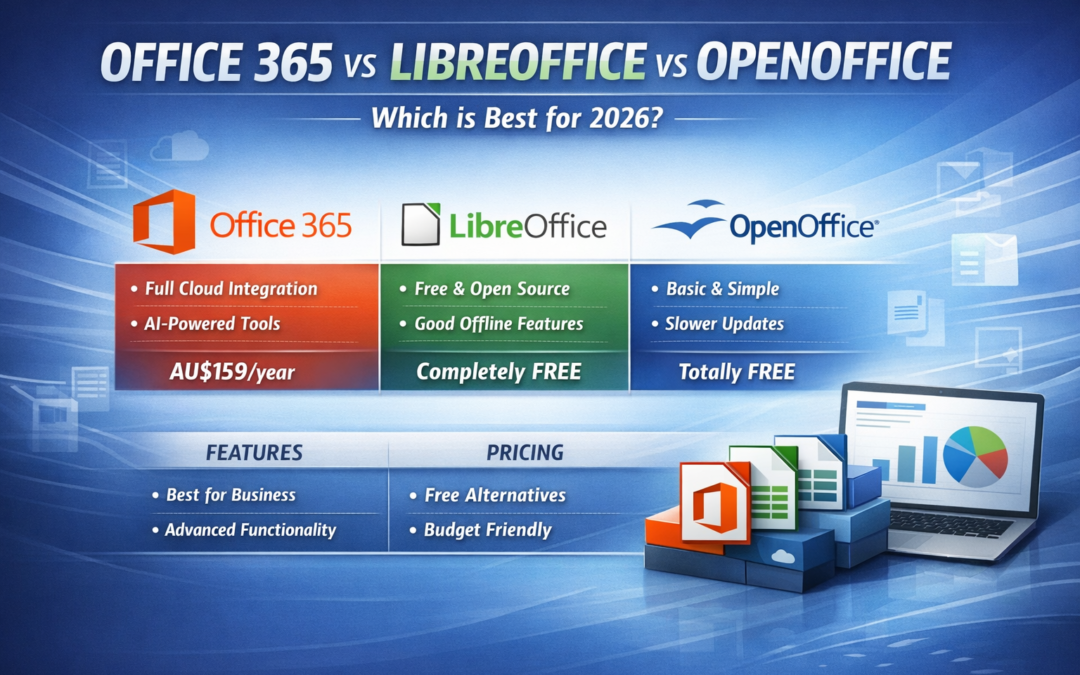
Office 365 vs LibreOffice vs OpenOffice — Which One Should You Use in 2026?

Office 365 vs LibreOffice vs OpenOffice — Which One Should You Use in 2026?

Sales, Products & Recommendations

by admin | Jun 1, 2026

Choosing the right office suite can make a huge difference in productivity, compatibility, and long‑term cost. Whether you’re a student, home user, or small business in Nowra, the big question remains: Should you pay for Microsoft Office 365, or switch to a free alternative like LibreOffice or OpenOffice?

Here’s a clear, practical comparison to help you decide.

🧰 1. Functionality Comparison

Microsoft Office 365 (Microsoft 365)

Office 365 remains the industry standard for productivity. It includes:

  • Word

  • Excel

  • PowerPoint

  • Outlook

  • OneNote

  • Teams

  • OneDrive cloud storage

  • SharePoint (business plans)

Strengths:

  • Best compatibility with other users and organisations

  • Real‑time collaboration

  • Cloud syncing across devices

  • AI‑powered features (Microsoft Copilot, design suggestions, predictive typing)

  • Professional‑grade tools for business and education

Ideal for:

Businesses, students, remote workers, and anyone who needs seamless compatibility.

LibreOffice (Free & Open Source)

LibreOffice is the strongest free alternative, actively updated and widely used.

Includes:

  • Writer

  • Calc

  • Impress

  • Draw

  • Base

  • Math

Strengths:

  • Completely free

  • Excellent offline performance

  • Strong for basic to intermediate document work

  • Frequent updates and active community

Limitations:

  • Formatting can break when opening complex Word/Excel files

  • Limited collaboration tools

  • No built‑in cloud storage

  • No Teams‑style communication

Ideal for:

Home users, students on a budget, and anyone who doesn’t need advanced collaboration.

Apache OpenOffice (Free & Open Source)

OpenOffice was once the leading free alternative, but development has slowed dramatically.

Strengths:

  • Free

  • Simple interface

  • Good for basic documents

Limitations:

  • Very slow update cycle

  • Weaker compatibility with modern Office formats

  • Lacks many features found in LibreOffice

  • Not recommended for business use

Ideal for:

Very basic home use or older systems.

💵 2. Pricing Comparison (Australia, 2026)

Microsoft Office 365 / Microsoft 365 (Official Australian Pricing)

According to Microsoft’s Australian store:

  • Microsoft 365 Personal: AU$159/year or AU$16/month

  • Microsoft 365 Family (up to 6 users): AU$179/year or AU$18/month

  • Microsoft 365 Premium: AU$329/year or AU$33/month

Business plans (AUD):

  • Business Basic: AU$8.20/user/month

  • Business Standard: AU$17.20/user/month

  • Business Premium: AU$30.20/user/month

These plans include cloud storage, Teams, Outlook, and ongoing updates.

LibreOffice (AUD)

  • Free

  • Optional donations

  • No subscription required

Apache OpenOffice (AUD)

  • Free

  • No subscription

  • No paid features

🥇 3. Which One Should You Choose?

Choose Office 365 if you:

  • Need perfect compatibility with others

  • Work in a business environment

  • Use Teams, Outlook, or OneDrive

  • Want AI‑powered tools

  • Collaborate regularly

Choose LibreOffice if you:

  • Want a powerful free alternative

  • Mostly work offline

  • Don’t need advanced collaboration

  • Are comfortable with occasional formatting differences

Choose OpenOffice if you:

  • Only need basic document editing

  • Prefer a simple interface

  • Are using an older computer

🏁 Final Thoughts

For most customers — especially businesses, students, and remote workers — Microsoft Office 365 remains the best all‑round choice in 2026. Its compatibility, cloud features, and AI tools make it hard to beat.

However, LibreOffice is a fantastic free option for everyday home use, and OpenOffice still works for very basic tasks.

If you’re unsure which one suits your needs, drop into the shop or message us — we’re always happy to help you choose the right tools for your workflow.
May the 4th Be With Your Tech!

May the 4th Be With Your Tech!

Sales, Products & Recommendations

by admin | May 4, 2026

A Star Wars Day Special from VirtualCity

Every year on May the 4th, the galaxy celebrates Star Wars Day — and here at VirtualCity, we’re joining in the fun with a message that’s a little bit playful… and a lot practical.

Because while Jedi have the Force, you’ve got us — your local tech experts right here in Nowra.

Is Your Tech Turning to the Dark Side?

Even the most loyal droids need a tune‑up now and then. If your PC or Mac has been acting more like a malfunctioning protocol droid than a reliable companion, today’s the perfect day to bring it in.

Common signs your tech may be flirting with the Dark Side:

  • Slow boot times

  • Random freezes or crashes

  • Overheating

  • Strange noises (not the cute R2‑D2 kind)

  • Pop‑ups or suspicious behaviour

  • Wi‑Fi dropouts

  • Battery draining faster than a podracer

If any of these sound familiar, don’t wait for a Sith Lord to appear — swing by the shop and let us restore balance to your system.

May the 4th Special: Free “Jedi Health Check”

For this week only, drop in and mention “May the 4th” and we’ll perform a free quick diagnostic on your PC or Mac.

We’ll check:

  • System health

  • Storage status

  • Malware presence

  • Performance bottlenecks

  • Update issues

  • Hardware red flags

No obligation — just a friendly, local service to keep your tech on the Light Side.

Upgrade you Must?

If your current system is older than Yoda, it might be time for an upgrade. We’ve got MSI Cubi 5 NUCs, laptops, and accessories available to order — compact, powerful, and perfect for home, business, or study.

Ask us in-store and we’ll help you choose the right system for your needs (no Jedi mind tricks required).

Visit Us in Nowra — Your Local Tech Jedi

Whether you need repairs, upgrades, advice, or a whole new system, we’re here to help.

Drop in today and let the Force — and VirtualCity — be with you.