
Windows Login Password Box Missing? Here’s Why It Happens (and How to Fix It Fast)
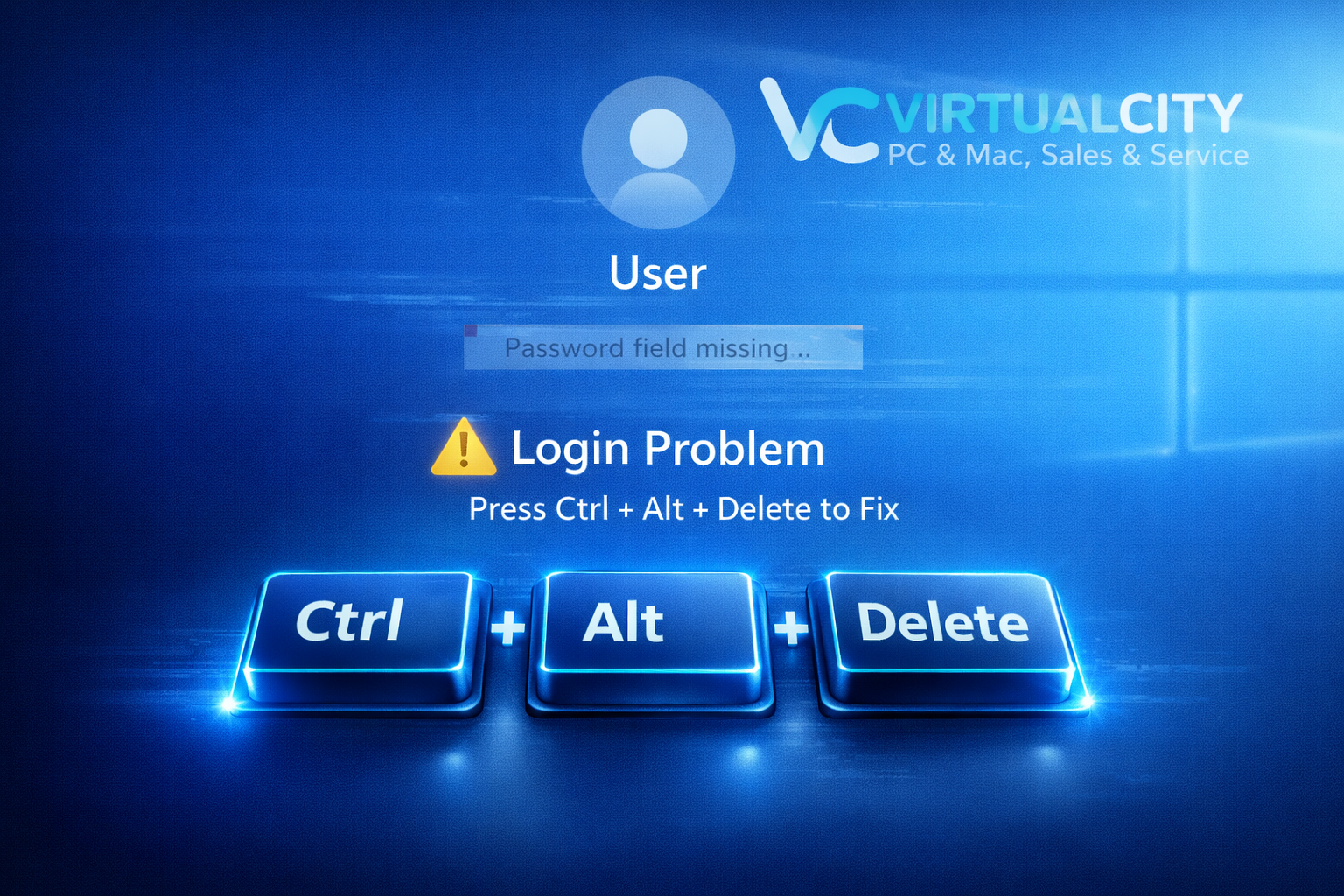
Sitting down at your PC only to find the Windows password box missing is enough to stop your day in its tracks. No password field, no PIN option, no sign‑in buttons — just the lock screen staring back at you.
The good news: this issue is very common and usually caused by a simple glitch. Even better, it’s often fixed in seconds.
Below are the most common reasons the Windows login box disappears — and the quickest ways to bring it back.
Why the Windows Password Box Disappears
- Windows Didn’t Load the Login Interface Properly
Sometimes Windows loads the lock screen but fails to display the password field. This is the most frequent cause and is usually fixed with a quick reset or keyboard shortcut. - A Windows Update Didn’t Apply Cleanly
After major updates, Windows may temporarily fail to load the login UI. This can leave you stuck at the lock screen with no way to sign in. - The Computer Woke From Sleep Incorrectly
If your PC resumes from sleep or hibernation and the login process stalls, the password box may not appear. - External USB Devices Are Interfering
Faulty USB devices — especially wireless dongles, USB hubs, and external drives — can interrupt the login process and prevent the password field from loading.
How to Bring Back the Missing Windows Password Box
- Press Any Key or Click the Mouse
Windows sometimes hides the login box behind the lock screen. Try:- Pressing Enter
- Clicking the mouse
- Tapping the Spacebar
If the login field was simply hidden, it will slide into view.
- Use the Keyboard Shortcut: Ctrl + Alt + Delete
This is the fastest and most reliable fix.
Press Ctrl + Alt + Delete to force Windows to reload the login interface.
In most cases, the password box appears instantly. - Restart the Computer
If the login screen is still blank:- Hold the Power button for 5–10 seconds
- Wait for the PC to fully shut down
- Turn it back on
A fresh boot clears temporary glitches and reloads the login UI.
- Disconnect External Devices
Unplug anything non‑essential:- USB drives
- Wireless keyboard/mouse dongles
- Printers
- External hard drives
- USB hubs
Then restart the computer. If a device was causing the issue, the password box will return.
- Boot Into Safe Mode (If the Issue Keeps Returning)
If the problem is persistent:- Restart the computer
- Hold Shift and select Restart
- Go to Troubleshoot → Advanced Options → Startup Settings → Restart
- Choose Enable Safe Mode
If the password box appears in Safe Mode, the issue is likely caused by a driver or startup program.
When to Seek Professional Help
If the password box still won’t appear, the cause may be more serious:
- Corrupted system files
- A failed Windows update
- A damaged user profile
- Hardware faults
At that point, professional support is the safest option to avoid data loss. VirtualCity can diagnose and repair Windows login issues for customers across Nowra and the Shoalhaven.
Final Thoughts
A missing Windows password box can feel like a major problem, but it’s usually just a minor glitch. In most cases, Ctrl + Alt + Delete or a simple restart brings it straight back.