
How to Move the Start Button Back to the Left
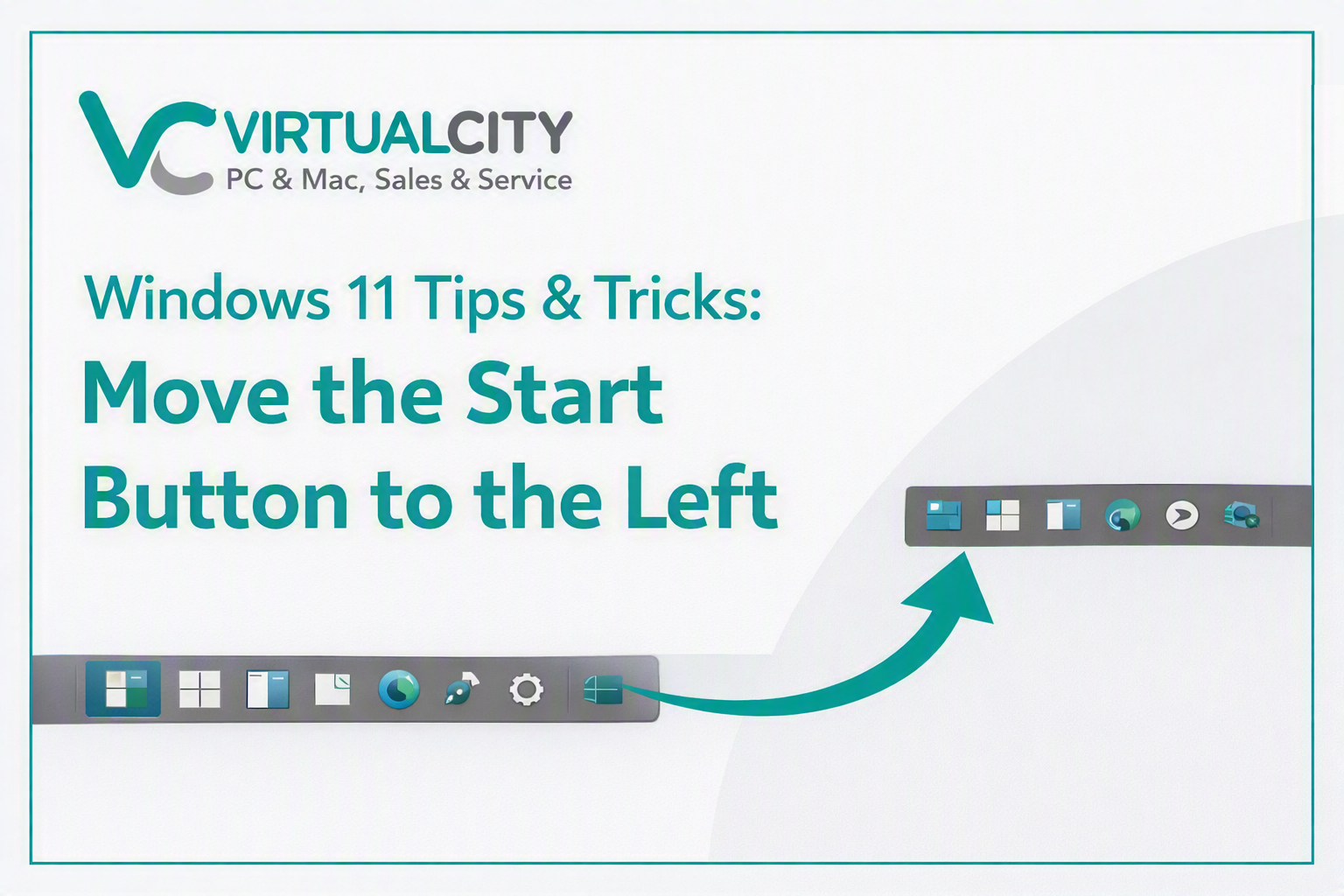
One of the first things people notice when they upgrade to Windows 11 is the Start button sitting proudly in the centre of the taskbar. It's modern, it's clean… and for some long‑time Windows users, it's just a little too different.
If you're someone who prefers the classic left‑aligned Start button, the good news is that Windows 11 makes it easy to switch back. Here's how to restore that familiar layout in just a few clicks.
Why Change the Alignment?
Windows 11's centred taskbar is designed to feel more balanced—especially on wide screens—but muscle memory is powerful. If you've spent years flicking your cursor to the bottom-left corner, the new layout can feel like a speed bump in your workflow.
Realigning the Start button to the left gives you:
- A more traditional Windows feel
- Faster access if you’re used to the old layout
- A cleaner look if you prefer everything anchored to one side
How to Move the Start Button to the Left
- Right-click the taskbar
Anywhere on the taskbar is fine. - Select Taskbar Settings
This opens the Personalization section of Settings. - Scroll down to Taskbar behaviours
It's near the bottom of the page. - Find Taskbar alignment
Click the dropdown menu. - Change the setting from Center to Left
That's it. Your Start button and pinned apps will immediately shift to the left-hand corner, giving you the classic Windows look.