
Swap Your Windows Layouts Instantly in Windows 11
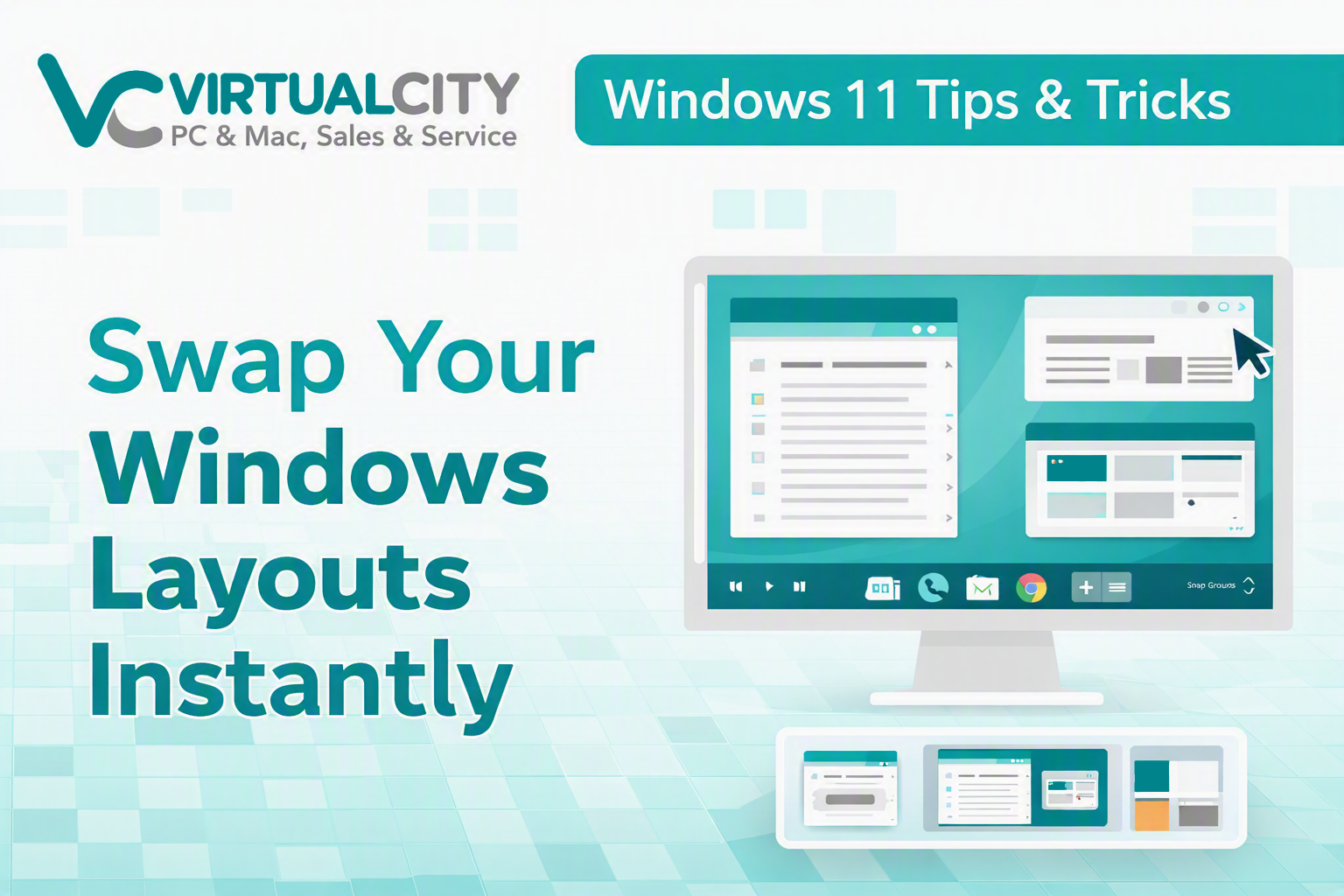
If you're someone who juggles multiple apps, windows, or workflows throughout the day, Windows 11 has a feature you'll absolutely love - Snap Layouts and Snap Groups. These tools let you organise your screen exactly how you like it… and then switch between layouts instantly.
Whether you're working, studying, gaming, or just trying to keep your digital life tidy, this quick tip will help you stay organised and save time.
What Are Snap Layouts?
Snap Layouts are Windows 11's built‑in window‑management tool. When you hover your mouse over the maximise button on any window, you'll see a selection of layout options — halves, thirds, grids, and more.
They let you quickly position apps side‑by‑side without dragging and resizing manually.
What Are Snap Groups?
Snap Groups take things a step further. Once you've arranged your apps into a layout, Windows 11 remembers that arrangement. You can then switch back to that exact layout with a single click from the taskbar.
Perfect for switching between:
- Work layout → Email + Browser + POS system
- Study layout → Browser + PDF + Notes
- Creative layout → Music app + Editing software
- Admin layout → Accounting software + Calendar + File Explorer
How to Swap Between Layouts Instantly
Here's the part most people don't know — you can swap layouts without rebuilding them each time.
- Create your first layout
- Hover over the maximise button on any window
- Choose a layout
- Fill the remaining slots with the apps you want
Windows will automatically save this as a Snap Group.
- Create a second layout
Repeat the same process with a different set of apps or a different arrangement. - Switch between layouts
On your taskbar, hover over the icons of apps that are part of a Snap Group.
You'll see a preview of the entire layout.
Click once — and the whole layout snaps back into place.
No dragging. No resizing. No rebuilding.
Pro Tips from VirtualCity
- Use keyboard shortcuts:
Press Windows + Z to open Snap Layouts instantly. - Use multiple desktops:
Combine Snap Groups with Virtual Desktops for even cleaner organisation. - Great for dual monitors:
Snap Layouts work independently on each screen. - Perfect for business users:
Keep your CRM, email, and browser grouped together for fast switching.
Why This Helps
If you're running a busy home office, managing a business, or simply multitasking, swapping layouts saves time and reduces clutter. It's one of those small Windows 11 features that quietly makes your day smoother.
Want More Windows 11 Tips?
We're building out a full library of practical, easy‑to‑follow Windows 11 guides for the Nowra community. If you’d like a tip covered - layouts, shortcuts, security, or performance - just let us know.